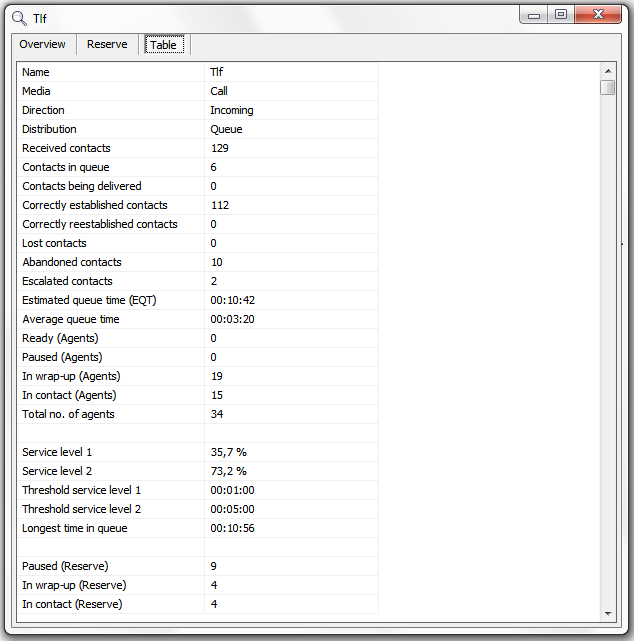
In ACE Pulse you can open a status window for a separate queue via the context menu in the Queue table window. There are four tabs in the queue detail window. The name in the title bar is the queue/waiting list selected in the view leading to the detail window.
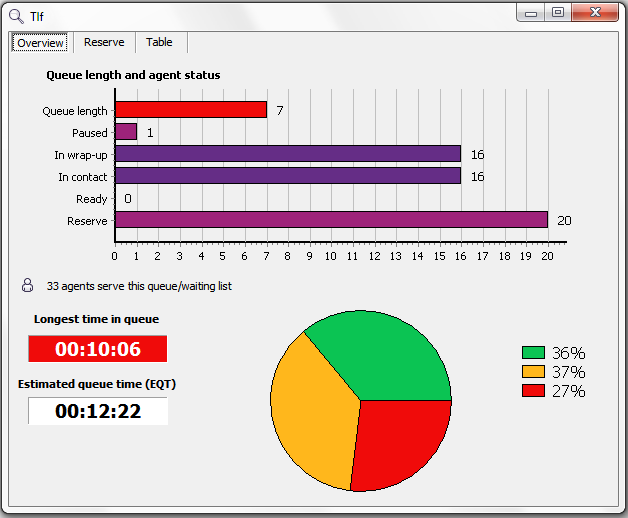
Overview
A graphical compilation of agent status right now. You also see queue length and service level fulfilment during the day.
Workforce
The present situation for selected queue/waiting list is seen together with lists of agents, to whom you can send messages.
You can also login agents on the queue e.g. during a peak, and log out agents from queue when peak is over. Via the Extra Agents button you can reach agents lacking the skills required to serve the queue.
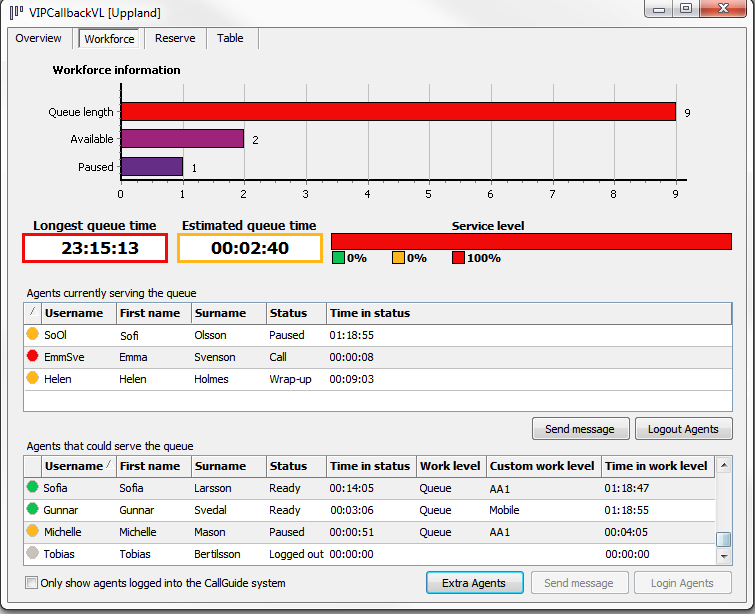
- Select agents from any of the lists by clicking on the their names. For multiples hold down the Ctrl key and click on the relevant rows.
- To write and send a message, click on Send message. Write your text and send with OK.
- To login or logout agents select names in a list and click Login Agents, respectively Logout Agents. A message will be sent automatically, notifying the agent being logged in or out from the queue. You can add your own text to this message as well.
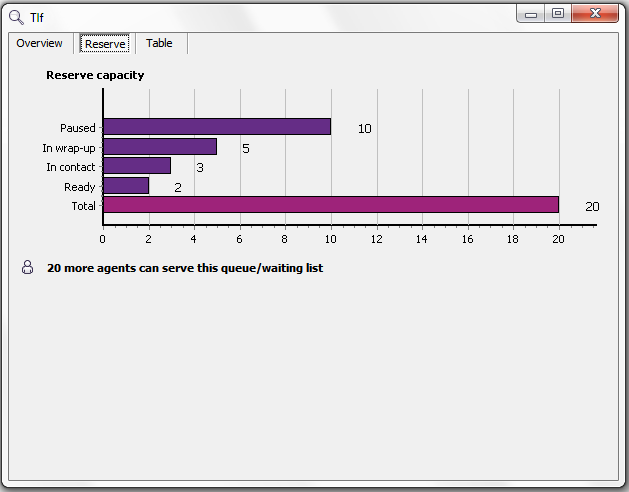
Reserve
A bar chart shows the number of agents having the appropriate skill, although not logged in to the queue right now.
Table
The same information as on the other tabs, but as text.